// guide
Shopify inventory and cash flow integration for Keel HQ
Connect Shopify to Keel HQ with read-only scopes. Orders, refunds and transactions sync every six hours, products and inventory daily, payouts into your forecast.

David LindahlFounder of Keel HQ, and runs a DTC brand on it
Published Last verified
- Access
- Ten read-only Admin API scopes
- Orders
- Every six hours
- Inventory
- Daily
- Payouts
- Into the 14-week forecast
// the steps
- 01Open Settings → Integrations. Find the Shopify card. You need the member role to connect; a viewer sees status only.
- 02Connect with Shopify. Click Connect with Shopify and approve the read-only scopes on Shopify's own screen.
- 03Let the first import run. The first import runs in the background. Refresh the card in a few minutes to see the last sync time.
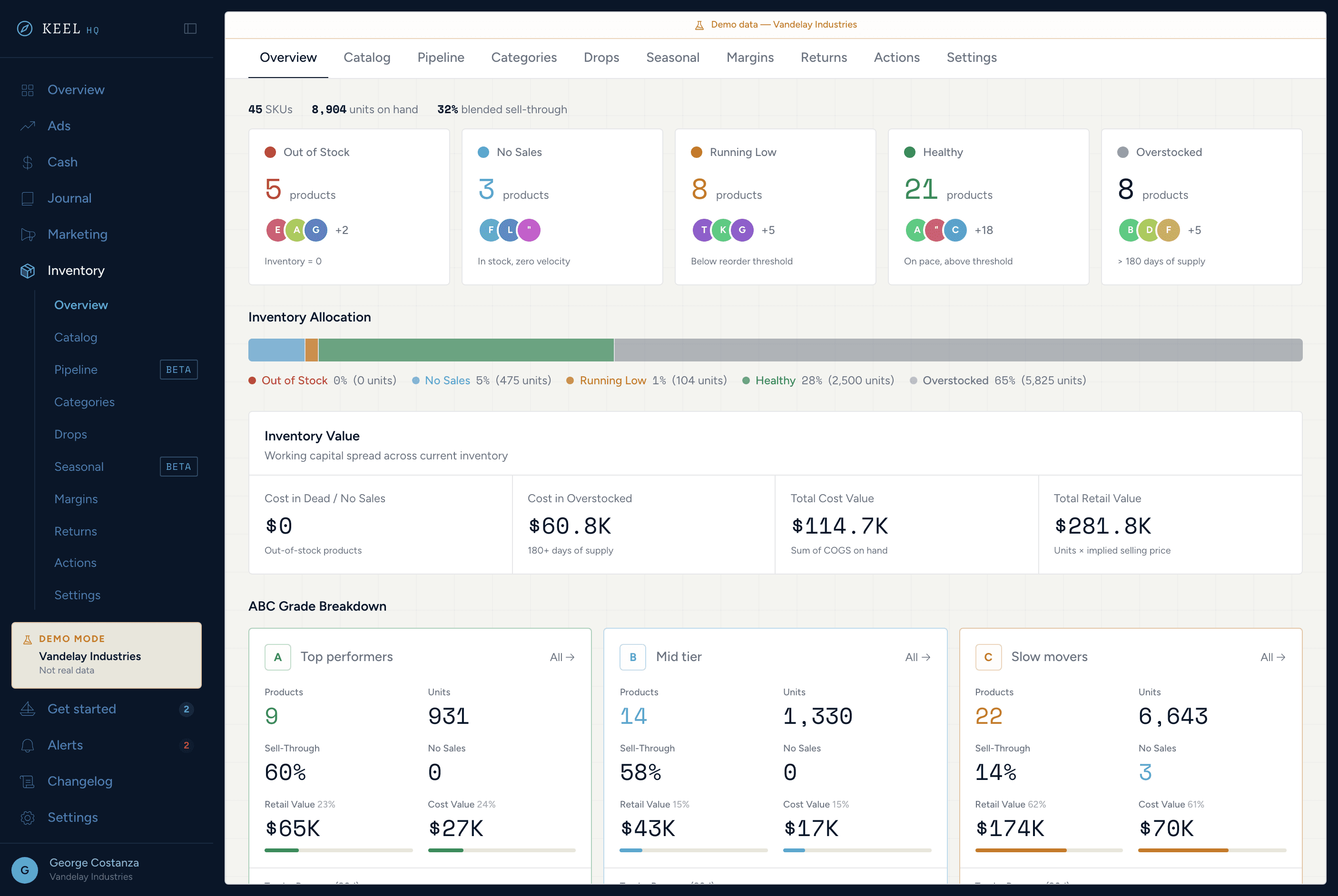
- 04Check the numbers. Open Inventory for days of cover and reorder points, and Cash, then Forecast, for upcoming payouts.
// tl;dr
Keel HQ reads your Shopify store through ten read-only Admin API scopes: it can't edit products, orders or inventory. Orders, refunds and transactions sync every six hours, products and inventory levels once a day, and Shopify Payments payouts feed the cash forecast. A second store, such as a wholesale one, connects the same way.
Shopify is the source everything else in Keel HQ is measured against: inventory comes from your products and orders, and the cash forecast starts its revenue side from your payouts.
What syncs
Orders, refunds and transactions. A delta sync every six hours, for every connected store.
Products and inventory levels. Once a day at 02:00 UTC, including the variants and SKUs that reorder points are set on.
Shopify Payments payouts. Read when the cash forecast is built, so upcoming payouts, and the lag between a sale and its payout, show up as forecast weeks.
What Keel HQ is allowed to read
Keel HQ requests these Admin API scopes at install, and no others. Each is read-only.
| Scope | Why it's needed |
|---|---|
read_orders, read_all_orders | Order history. read_all_orders lifts Shopify's default 60-day limit. |
read_returns | Returns, so refunds reverse revenue and cost correctly. |
read_products, read_inventory, read_locations | Products, variants, stock levels and the locations they sit in. |
read_fulfillments | Fulfillment data on orders. |
read_customers | Customer details on orders. Requested under Shopify's protected customer data rules. |
read_shopify_payments_accounts, read_shopify_payments_payouts | Payouts for the cash forecast. Without both, the forecast has no upcoming payouts. |
Connect Shopify
- 01Open Settings → Integrations
Find the Shopify card. Connecting needs the member role or above; a viewer sees the status but can't connect.
- 02Click Connect with Shopify
Shopify opens its own approval screen listing the scopes above. Approve it, and you're returned to Keel HQ.
- 03Let the first import run
The first import runs in the background, and the card says so if you try to start another. Refresh in a few minutes. Test Connection checks the link without syncing, and each sync type can be run by hand.
- 04Check the numbers
Open Inventory for days of cover, and Cash → Forecast for payouts. If a figure looks off, compare the card's last sync time first.
Start from the Shopify card in Settings → Integrations; it sends you to Shopify to approve the scopes.
When something looks wrong
"Last synced" is old. Run a sync from the card. A failed sync shows its error on the card.
Reconnect required. The card asks you to reconnect when Shopify no longer accepts the token, for example after an uninstall. Reconnecting restores syncing.
A second store shows nothing. Each storefront has its own card. A store that isn't connected has not synced anything.
What this doesn't do
No writes. Keel HQ doesn't edit products, adjust inventory or create purchase orders in Shopify.
No real-time sync. Orders arrive every six hours and inventory daily, so a sale made a minute ago isn't in Keel HQ yet.
Keel HQ is in private beta, with a waitlist.
Next, connect Mercury so the forecast starts from real bank balances.
Questions
- Can Keel HQ change anything in my Shopify store?
- No. Every scope Keel HQ requests starts with read_. It can read orders, products, inventory, customers, fulfillments, locations, returns and Shopify Payments data, and it has no write scope.
- How often does Shopify sync?
- Orders, refunds and transactions every six hours. Products and inventory levels once a day, at 02:00 UTC. You can also run a sync by hand from the Shopify card.
- Why does Keel HQ ask for read_all_orders?
- Shopify's default order access covers the last 60 days. read_all_orders lets Keel HQ read your full order history, which sell-through rates and the monthly reports need.
- Can I connect a second store?
- Yes. Keel HQ handles a DTC and a B2B storefront side by side. Connect the second one from its own Shopify card in Settings → Integrations.
- What happens if I uninstall the app?
- Shopify tells Keel HQ, the connection is marked uninstalled, and no sync picks that store up again. Rows already synced are kept, and read as stale from their last sync.
// how keel hq does this
Know what to reorder and what to stop buying.
From ABC grading to sell-through curves, product pipeline, margin modeling, and return tracking — inventory ops without the spreadsheet.
See inventory in Keel HQKnow your position. Never be surprised.
Runway days, debt stack, a 14-week rolling forecast with scenario sliders, and auto-generated action items — all without a spreadsheet.
See cash command center in Keel HQ
// related
// sources
- Shopify app access scopes, Shopify developer documentation · accessed