// alternative
Stocky alternative: rebuild your suppliers, reorder points and POs
Stocky shut down on August 31, 2026. What to export before the read-only window closes, and how to import your open purchase orders and suppliers into Keel HQ.

David LindahlFounder of Keel HQ, and runs a DTC brand on it
Published Last verified
- Deadline
- Read-only exports end around late November 2026
- You rebuild
- Suppliers, open POs, reorder points
- Import
- Open POs from Stocky's CSV; suppliers from a spreadsheet
// status · Stocky
Shopify says Stocky is no longer available as of August 31, 2026, and that you have read-only access to export your data for at least 90 days after that date. Suppliers can't be exported, and historical purchase orders can't be imported into Shopify.
SourceVerified
// tl;dr
Stocky closed on August 31, 2026, and Shopify guarantees read-only export access for at least 90 days, which puts the end of the window around late November. Suppliers can't be exported at all, so write them down now. Keel HQ can import open purchase orders from Stocky's PO CSV and suppliers from a spreadsheet; you review everything before it saves.
Shopify's help center documents the shutdown on a dedicated page (Transitioning from Stocky, accessed 2026-10-24). Everything about Stocky below comes from that page. Check it, and your own Stocky account, for the exact end of the export window, because Shopify gives a minimum and not a date.
What Shopify says happened
Stocky is no longer available as of August 31, 2026.
You have read-only access to export your data for at least 90 days after that date.
Stocky data doesn't move to Shopify on its own. You export what you want to keep with Stocky's built-in reports: all completed purchase order reports (CSV), your stocktake history, and your historical cost data.
Suppliers can't be exported.
Historical purchase orders can't be imported into Shopify. The purchase order CSV upload only adds product line items to a new draft purchase order.
Shopify's replacement is the inventory management built into the Shopify admin and Shopify POS. It can't email purchase orders, so you download each one as a PDF and send it yourself.
The options
| Stocky (closed) | Shopify's built-in inventory | Keel HQ | |
|---|---|---|---|
| Status | Read-only export until at least late November 2026 | Available in the Shopify admin and POS | Available, in private beta |
| Suppliers | Can't be exported | Not covered on the transition page | Lead time, minimum order quantity (MOQ) and payment terms per supplier |
| Purchase orders | Completed POs export as CSV | Create POs in the admin; CSV upload adds line items to a draft | POs with a payment schedule that feeds the cash forecast |
| Reorder points | Not covered on the transition page | Not covered on the transition page | Sales pace × (lead time + safety days), with a reorder-by date per product |
| Import from Stocky | — | Line items only | Open POs from Stocky's PO CSV; suppliers and per-SKU settings from your own spreadsheet |
The Shopify column only reports what the transition page says. If Shopify's built-in tools cover your volume, they are the zero-cost path. Keel HQ is for brands that want reorder points, supplier terms and purchase order payments in one place with their cash.
Export checklist
- 01Suppliers
There is no export, so open each supplier and copy its name, contact email, lead time, MOQ, currency and payment terms into a spreadsheet.
- 02Open purchase orders
Note each one's supplier, PO number, line items, quantities, unit costs, expected ship and arrival dates, and what you've paid so far.
- 03Completed purchase order reports
Download them as CSV. They are your record of what you paid each supplier and at what cost.
- 04Stocktake history and historical cost data
Export both from Stocky's reports. Keel HQ doesn't import them, but you'll want the files.
Stocky's menu paths aren't documented on Shopify's page, so look for the reports area inside Stocky.
Rebuild in Keel HQ
Keel HQ already syncs your products, variants and stock from Shopify, so the catalog is there when you connect your store. Suppliers and purchase orders are what you bring across.
- 01Add your suppliers
Do this first, with payment terms. When you import purchase orders, each order copies its supplier's payment terms as they are at that moment. Stocky can't export suppliers, so this starts from what you copied into a spreadsheet. Either import it or enter each supplier by hand.
Import a spreadsheet. Open Inventory → Settings, find the Suppliers card and click Import. Choose Your own spreadsheet: Suppliers, with one row per supplier. Keel HQ reads these columns: Supplier name, Lead time (days), MOQ, Currency, Payment terms, Email and Notes. Payment terms can be written as Net 30, 30/70 (30% at order, 70% at ship) or Prepaid. Review, then click Import.
Or by hand.
- In the Suppliers card, click Add supplier.
- Fill in Name, Contact email, Lead time (days), MOQ (units) and Currency.
- Set the Default payment terms, either from a common schedule or as your own percentages and days. A 30% deposit at order and 70% on arrival is two lines.
- Click Add supplier in the panel to save it. Repeat for each supplier.
An existing supplier with the same name is updated, not duplicated.
- 02Then import your open purchase orders
- Open Inventory → POs and click Import. This opens Inventory → Import.
- Under What is this file?, choose Stocky purchase orders (CSV). The page tells you where to find the file in Stocky.
- Click Choose file and pick the CSV (or an Excel file). A file can have up to 10,000 rows.
- Check the Columns card. Keel HQ matches Stocky's headers for you, and you can change any of them. A purchase order downloaded on its own may carry no PO number or supplier column: choose Same value for every row… and type it in.
- Set Numbers are written, and Dates like 03/04/2026 are, to match the file.
- Under Suppliers without payment terms, choose a payment schedule for orders whose supplier has none, or leave it empty to import those orders as drafts. If you added your suppliers with terms first, this rarely applies.
- Click Review import. Nothing is saved yet. The review lists the suppliers and purchase orders it will add, and anything it left out or couldn't read.
- Click Import. You land on Inventory → POs. Importing the same file again adds nothing twice.
What the review does with your orders:
Orders that are received in full or cancelled are left out. You only need the open ones.
A part-received order is left out and listed as a problem, because Keel HQ counts a line's whole quantity as on order. Re-create it by hand with only the quantity still to come.
Each order copies its supplier's payment terms when it's imported, and those payments feed the cash forecast. Changing a supplier's terms later doesn't change orders already imported. If a supplier has no terms, the order takes the schedule you picked under Suppliers without payment terms, or becomes a draft if you left that empty. Drafts stay out of the forecast until you set their terms.
Suppliers named in the file are matched to the ones you added by name, ignoring case and extra spaces. A supplier that isn't in Keel HQ yet is created with the default 7-day lead time and no payment terms, which is why you add suppliers first.
Each payment falls due from the order, ship or arrival date in the file, depending on the supplier's terms. Dates are read in the order you chose. A placed order whose terms need a date the file doesn't have is imported as a draft.
An order's currency comes from the file's currency column, else its supplier's currency, else USD. Only USD orders count in the cash forecast.
Tick the payments you've already made. The review lists each order's payments with a Paid already box. A placed order starts with the deposit due at order ticked, and a shipped order also the payment due at shipping. If your file has an Amount paid, Payment status or Paid date column, the importer uses that instead. Untick or tick any box before you click Import: a ticked payment is saved as paid and stays out of the cash forecast.
- 03Assign suppliers and lead times to products
Open each product from Inventory → Catalog and assign its supplier in the product drawer. For many products at once, import a spreadsheet with Your own spreadsheet: SKU settings, one row per SKU with SKU, Supplier, Lead time (days), MOQ and Reorder point (units).
- 04Check the reorder points
Reorder points are computed, not imported from Stocky. A product with a supplier reorders at its sales pace × (lead time + safety days), unless you set a fixed Reorder At on the product. Open a product in Inventory → Catalog to see its Reorder Point and Reorder By.
You can also create a purchase order yourself under Inventory → POs → New PO. See Keel HQ's inventory features for the rest of the module.
What Keel HQ doesn't do
No direct connection to Stocky. You upload exported files, and because Stocky can't export suppliers, those come from your own spreadsheet.
No statistical demand forecast. Reorder points use the trailing 90-day sales pace, so a seasonal ramp is something you adjust by hand.
Keel HQ doesn't email purchase orders to suppliers.
Keel HQ is in private beta, with a waitlist.
Questions
- Can I import my Stocky data into Keel HQ?
- Partly. Under Inventory → Import you can upload Stocky's purchase order CSV and Keel HQ adds the open orders, and the suppliers they name. Stocky can't export suppliers, so their lead times, minimum order quantities and payment terms come from your own spreadsheet or are entered by hand. Nothing is saved until you review it.
- Can I still export from Stocky?
- Shopify says you have read-only access to export your data for at least 90 days after August 31, 2026. It doesn't publish an exact end date, so export now and confirm the date inside Stocky.
- Can I export my suppliers from Stocky?
- No. Shopify states that suppliers can't be exported from Stocky. Copy each supplier's contact, lead time, minimum order quantity and payment terms from the Stocky screens while you still have access.
- Can I import old purchase orders into Shopify?
- No. Shopify states that historical purchase orders can't be imported, and that its purchase order CSV upload only adds product line items to a new draft purchase order.
- Does Keel HQ use a statistical demand forecast like Stocky's suggestions?
- No. Keel HQ's reorder point is the trailing 90-day sales pace times the supplier's lead time plus your safety days, or a fixed number you set on the product.
// how keel hq does this
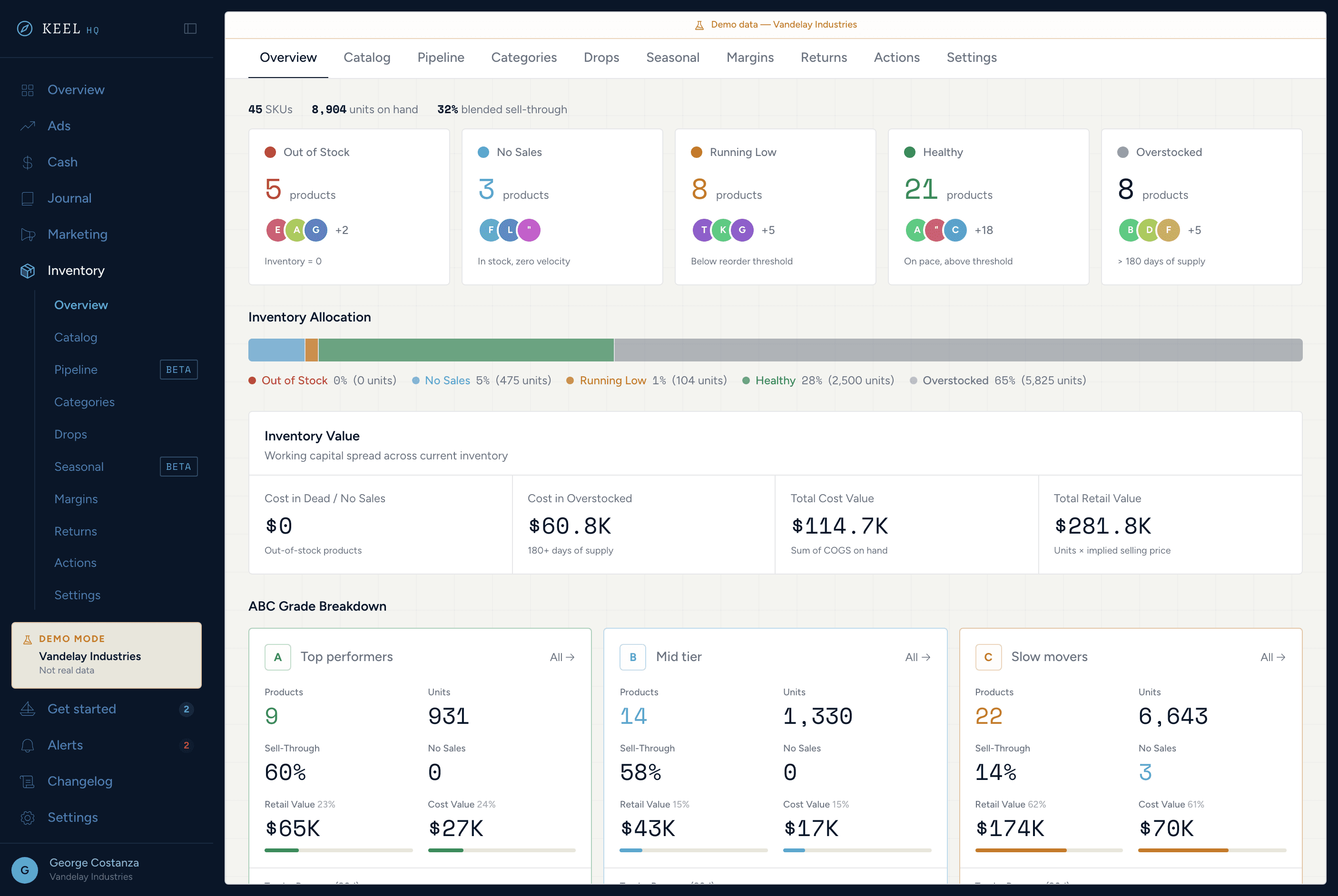
Know what to reorder and what to stop buying.
From ABC grading to sell-through curves, product pipeline, margin modeling, and return tracking — inventory ops without the spreadsheet.
See inventory in Keel HQKnow your position. Never be surprised.
Runway days, debt stack, a 14-week rolling forecast with scenario sliders, and auto-generated action items — all without a spreadsheet.
See cash command center in Keel HQ
// sources
- Transitioning from Stocky, Shopify Help Center · accessed